
AI Video Guides
hotel lobby ai filter guide
Turn two photos into an orange-studio AI duet. Learn where the Hotel Lobby trend came from, which models to use, and how to improve your results.
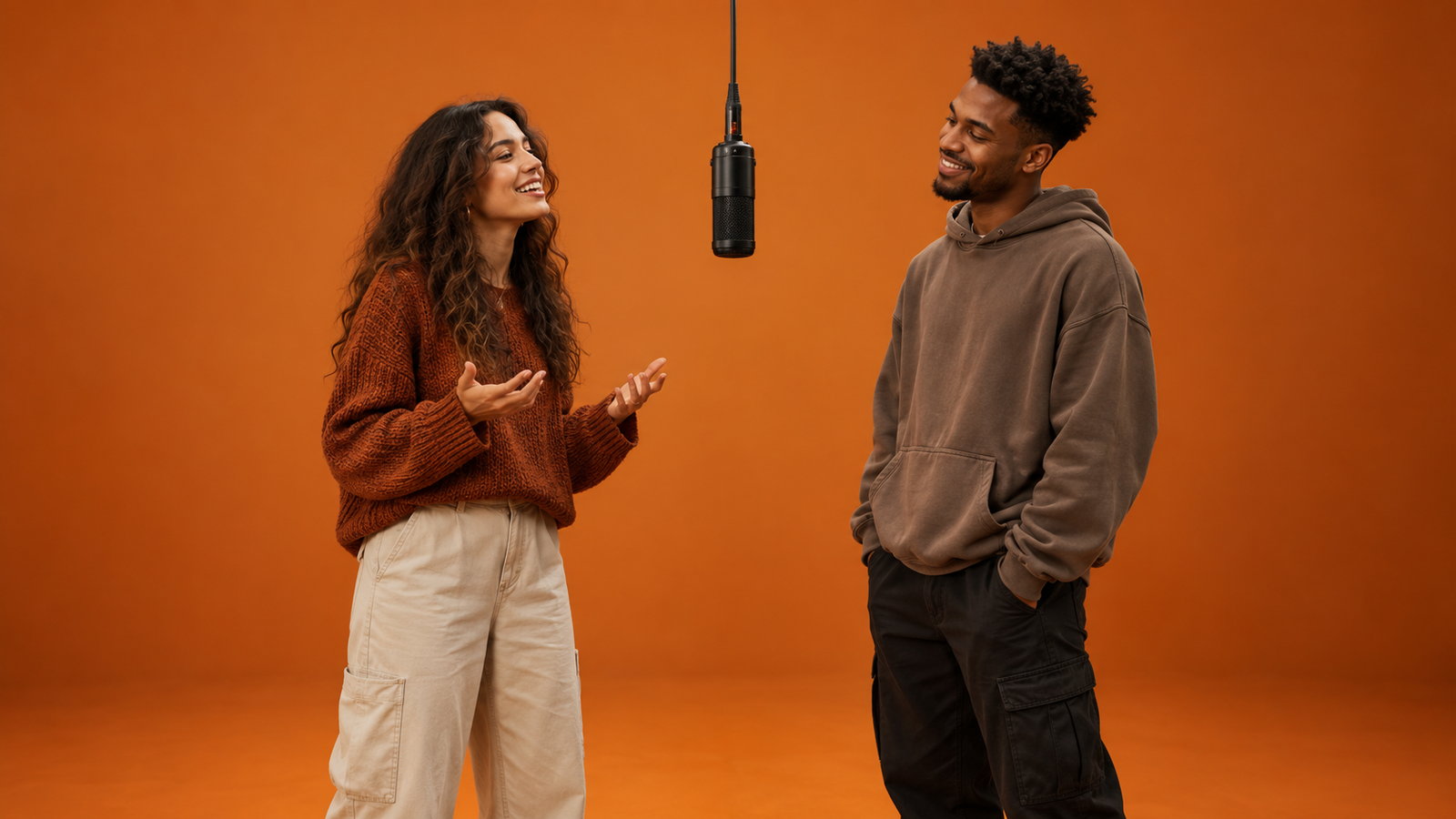
The Hotel Lobby AI filter turns photos into a two-person performance in an orange studio, with a microphone suspended between the performers. It recreates the recognizable setup from Quavo and Takeoff's “Hotel Lobby” appearance on A COLORS SHOW. The AI version changes the cast: friends, couples, pets, or fictional performers take the stage.
To make your own, prepare two reference photos, build the orange-booth composition, then generate a short video with alternating movement. On Flux Context, you can use Seedream 5.0 Pro to create the scene and Seedance 2.5 to animate it.
This guide explains the trend and gives you an original workflow and prompts to try. The goal is a recognizable orange-booth duet; recreating the original song's exact choreography and lip-sync requires additional motion and audio control.
What does “Hotel Lobby AI filter” mean?
The name comes from the song, rather than the location. You are creating a stripped-back performance studio, not a hotel reception area.
The recognizable ingredients are:
- Two subjects sharing the frame.
- A saturated orange background and floor.
- One hanging microphone between them.
- A simple camera setup that keeps the performers visible.
- A back-and-forth performance: one leads while the other reacts.
People also search for the Hotel Lobby AI trend, Migos AI trend, or COLORS AI trend. “Filter” is a convenient name for the effect, but the output can be a newly generated video, an edited reference video, or a still image made in the same style. There is no single model or universal filter button behind every version.
Where did the Hotel Lobby AI trend come from?
COLORS published Quavo & Takeoff — HOTEL LOBBY | A COLORS SHOW on June 17, 2022. The orange set and shared suspended microphone are the visual reference behind the meme. This performance is distinct from the song's separate official music video.
AI versions spread on TikTok and X during September 2026. Know Your Meme's timeline records a September 16 edit featuring characters from Suits, followed by other duos. That documents an early example, rather than proving who made the very first AI edit.
The resurgence also reached mainstream coverage: an October 2 Associated Press interview with Quavo discussed the AI phenomenon around the performance.
The creative appeal is easy to understand: the scene stays familiar while an unexpected pairing changes the joke. You can make your version personal without needing an elaborate set or complex camera movement.
Which AI model makes the Hotel Lobby filter?
Choose the model according to the output you need.
For a still image or opening frame: Seedream 5.0 Pro is an image model. Use reference photos to establish the two subjects and place them in a shared studio composition. ByteDance describes its capabilities on the official Seedream 5.0 Pro page.
For the moving performance: Seedance 2.5 is a video model with reference and editing capabilities. It is a documented option for this trend: Dreamina's Hotel Lobby filter tutorial specifically uses Seedance 2.5. That establishes one supported workflow, not the model used by every viral creator.
For closer control of an existing performance: A video-reference or editing workflow can guide movement more directly than a still image alone. ByteDance's Seedance 2.5 overview describes reference-video understanding and editing. Matching exact timing, identities, and audio still needs review.
For a first attempt, the workflow below starts with an approved still frame. That lets you check the cast and layout before generating motion.
How to make a Hotel Lobby AI filter video
1. Choose two clear reference photos
Use one image per subject, with a visible face and enough clothing detail to establish the intended outfit. Avoid photos where a phone, hand, sunglasses, or heavy blur hides identifying features.
Decide who belongs on the left and who belongs on the right. If the references have very different angles or lighting, select a more compatible pair. Use your own photos, consenting participants, or original characters.
You can also use a clear existing photo of both people. Two separate photos are useful when you need to describe each subject independently; neither approach guarantees exact likeness.
2. Create the orange-booth image with Seedream 5.0 Pro
Open the Seedream 5.0 Pro image generator, add the two reference images, and choose 9:16 for a vertical social post or 16:9 for a wider composition.
Try this starting prompt:
Create a photographic studio portrait of the two people in the uploaded references. Person from the first reference stands on the left, wearing their reference outfit. Person from the second reference stands on the right, wearing their reference outfit. Keep their faces distinct and recognizable.

Place both in a seamless burnt-orange performance studio, with one black microphone suspended between them. Frame from the knees upward with enough space around both heads and hands. Give the left person an animated, outgoing expression and the right person a relaxed, amused expression. Soft frontal light, realistic skin texture, natural proportions, clean editorial photography.

Include exactly two people and one microphone. Keep hands away from faces. No lettering or brand marks.
Treat this as a creative brief, not a preset with guaranteed results. Check both faces, outfits, spacing, and the microphone before moving on. If a detail is wrong, request one focused revision, such as: “Keep the composition unchanged; correct the right subject's hairstyle to match the second reference.”
Download a frame you are happy to animate. Problems in the opening image give the video model a poor starting point.
3. Animate the frame with Seedance 2.5
Open the Seedance 2.5 video generator, select the Image tab, and upload your completed still as the Start Frame. This mode derives the aspect ratio from the image.
Begin with a short clip, such as 8 seconds, at a supported resolution. For a visual-first draft, turn sound off and decide on the soundtrack afterward. Check the displayed credit estimate before submitting.
Use this motion prompt:
Animate the uploaded image as one continuous 8-second studio performance. Maintain the two distinct people, their outfits, the orange set, and the hanging microphone.

Seconds 0-3: the left performer gives a brief spoken-performance gesture with one hand below shoulder height. The right performer listens with a slight smile and a small head nod.

Seconds 3-6: the right performer responds with a small open-hand gesture. The left performer pauses and reacts with a relaxed nod.

Seconds 6-8: both settle into a confident pose, keeping a little natural shoulder movement.

Keep the camera fixed at the original framing. Keep both people on their original sides. Use restrained, independent movements; the microphone stays still. No cuts, camera travel, additional people, or text.
The timing is a requested performance plan. Generative video may interpret it loosely. Review the whole clip rather than judging only the first frame.
4. Try two-photo reference generation if you want another route
You can also start directly in Seedance 2.5. Choose Reference, then Reference Generation, and upload the two portraits. Use the reference buttons to insert @Image 1 and @Image 2 into your prompt.
For example:
Make a short orange-studio performance with the person in @Image 1 on the left and the person in @Image 2 on the right. One hanging microphone separates them. Keep their identities and clothing distinct. The left person speaks first with a small hand gesture; the right person nods, then responds while the left listens. Use a stationary medium-wide camera and understated movement throughout.This route generates the set and motion together. The still-first route gives you an additional opportunity to approve the composition. They are alternative workflows; the prompts here have not been benchmarked against each other.
5. Choose the audio and export
A prompt about the Hotel Lobby look does not supply the original recording or automatically synchronize mouths to its lyrics. Generated sound is also different from inserting that recording.
If you want a recognizable song excerpt, check the music options permitted for your post and account in the destination app. Availability for one platform does not establish permission for every other use. For promotional TikTok posts, consult TikTok's commercial music guidance.
For an original version, use your own audio or an instrumental you can use. A silent visual draft is useful for checking the movement before editing the soundtrack.
What should a good result look like?
The orange room alone is not enough. A convincing Hotel Lobby-style video needs a readable relationship between the two performers.
Check these details:
- Identity: each face remains recognizable from the beginning to the end.
- Placement: the subjects keep their sides, relative size, and intended outfits.
- Interaction: one performs while the other reacts, rather than both repeating the same motion.
- Anatomy: hands, arms, mouths, and shoulders move without obvious distortions.
- Set continuity: the microphone, floor, and background remain stable.
- Audio: the sound fits the intended post; do not describe loose mouth movement as exact lip-sync.
These are review criteria, not a claim of measured success rates. A good-looking still can still develop facial drift or awkward gestures once animated.
Common problems and how to improve them
The two faces blend or change
Check the reference photos and opening frame first. Keep the subjects visually distinct and restate each person's position. Reduce head turns or gestures that hide the face. Change one instruction, then compare the entire new take.
Both performers move at the same time
Specify separate roles: one speaks while the other listens. Break the clip into a few simple beats. Shorter, quieter movements are a useful first test before attempting energetic choreography.
Hands distort or cross the microphone
Ask for gestures below shoulder height and enough space between the subjects. Remove fast pointing, overlapping arms, or repeated mic-grabbing from the prompt. If a hand is already malformed in the still, fix it before animation.
The output looks like a hotel reception area
Describe the visible scene: “seamless burnt-orange performance studio, two performers, one suspended microphone.” The keyword “hotel lobby” alone can invite the literal architectural interpretation.
The movements do not match the original meme
An image supplies appearance and composition, rather than a complete choreography track. If exact movement is central to your idea, consider a reference-video workflow using footage you can use. Do not expect a text prompt to reproduce every beat of the original performance.
Hotel Lobby AI filter FAQ
Is the Hotel Lobby AI filter a TikTok effect?
The term describes a visual trend, rather than identifying one universal TikTok effect. You can generate or edit the video in an AI tool and upload the completed clip to your social platform. Some tools package the same idea as a template.
Can I make it from just one photo?
Yes, if that photo contains both subjects clearly. One person's portrait can also become a solo variation, but the back-and-forth duo is the recognizable format.
Can I make a Hotel Lobby AI image instead of a video?
Yes. Stop after the Seedream step and use the still as a portrait or cover. A still image will not include movement or sound.
Can I use pets?
Pets appear in the broader trend. For your own variation, specify coat markings and believable animal movement. Expect a different kind of performance from a human rap duet, and inspect paws and body proportions carefully.
Is it free?
Free access and trial credits vary by tool. On Flux Context, check the credit estimate in the chosen generator before submitting. There is no universal free Hotel Lobby filter offer.
Will it copy the original song and lip-sync perfectly?
No such result is guaranteed. The visual prompt does not include the original track, and matching a specific recording requires a suitable audio and motion workflow plus careful review.
Make your own orange-booth duet
Start with two clear subjects and a simple performance. Build the image with Seedream 5.0 Pro, then turn your selected frame into a moving duet with Seedance 2.5.
Give the pair distinct personalities, keep the first take restrained, and refine what you actually see in the result. The most useful version of the trend is one that makes your chosen duo the reason to watch.